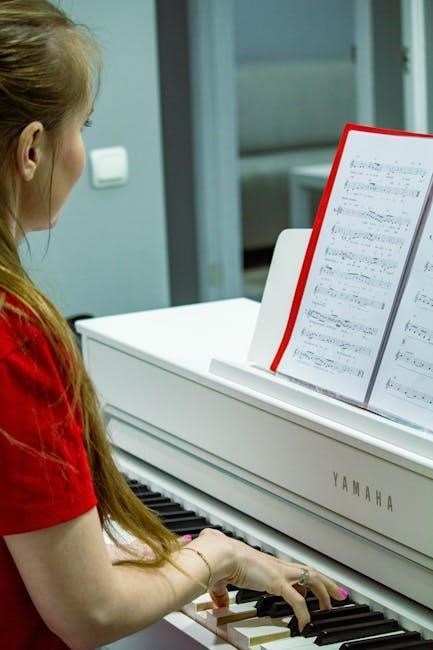
Yamaha P115 Manual: A Comprehensive Guide
This guide offers detailed instructions for the Yamaha P115 digital piano, covering setup, features, troubleshooting, maintenance, and advanced techniques for optimal performance.
The Yamaha P115 is a popular 88-key digital piano renowned for its authentic piano feel and high-quality sound. This instrument caters to both beginners and experienced players seeking a versatile and portable keyboard. Its Graded Hammer Standard (GHS) action replicates the touch of an acoustic piano, providing a realistic playing experience.
This manual serves as a comprehensive resource, guiding users through every aspect of the P115, from initial setup and connecting to devices, to exploring its diverse voices and functions. Prepare to unlock the full potential of your Yamaha P115!
Understanding the P115’s Key Features
The Yamaha P115 boasts several standout features. The 88-key Graded Hammer Standard (GHS) action provides a realistic piano touch, heavier in the low end and lighter in the high end. It features 10 voices, including beautifully sampled acoustic pianos, organs, and strings. Digital Signal Processing (DSP) ensures high-fidelity sound reproduction.
Connectivity options include USB to host for MIDI functionality and audio output. Duo mode allows for guided learning, while the built-in metronome aids in timing. Its compact and lightweight design enhances portability for musicians on the go.
Setting Up Your Yamaha P115
Proper setup ensures optimal performance. This section details unboxing, connecting power and pedals, and establishing connections to computers and mobile devices for enhanced functionality.
Unboxing and Initial Setup
Carefully unpack your Yamaha P115, ensuring all components are present: the piano itself, a power adapter, a music rest, and the owner’s manual. Inspect for any shipping damage immediately. Position the piano on a stable, level surface. Attach the music rest to the designated slots on the back of the instrument.
Before connecting power, familiarize yourself with the rear panel connections. The initial setup involves simply plugging in the power adapter and ensuring a secure connection. Avoid using excessive force. The P115 is now ready for basic operation and further configuration.
Connecting Power and Pedals
Ensure the Yamaha P115 is switched off before connecting the power adapter. Plug the adapter firmly into the DC IN jack on the rear panel and then into a grounded electrical outlet. For pedal connections, the P115 supports a sustain pedal (LP-1 optional) plugged into the dedicated SUSTAIN jack.
A three-pedal unit (UF7) can also be connected for more advanced control. Proper pedal connection enhances the playing experience, enabling nuanced expression. Verify secure connections to avoid intermittent signal loss during performance. Always use the specified Yamaha power adapter.
Connecting to Computers and Mobile Devices
The Yamaha P115 connects to computers and mobile devices via USB to MIDI. Use a standard USB A-to-B cable, plugging it into the USB TO HOST port on the piano and your device. This enables music software integration for recording, editing, and learning. No driver installation is typically needed for basic MIDI functionality on modern operating systems.
For iOS devices, an Apple Camera Connection Kit may be required. Explore compatible music apps for enhanced features and creative possibilities. Ensure a stable USB connection for seamless data transfer and reliable performance.
Navigating the P115 Interface
The P115’s interface features an intuitive control panel for selecting voices, adjusting effects, utilizing the metronome, and accessing recording functions with ease.
Understanding the Control Panel
The Yamaha P115’s control panel is designed for straightforward operation. Key components include the Power button, Volume slider for immediate sound adjustments, and the Category Select buttons. These buttons navigate through the diverse range of instrument voices available. The Grand Piano button provides instant access to the core piano sound.
Further controls manage functions like Dual and Split modes, allowing for layered or divided keyboard parts. The Metronome control enables rhythmic practice, while the Record button initiates the built-in recording feature. A dedicated panel section handles transport controls – Play, Pause, Stop – for playback of recorded performances. Understanding these elements unlocks the P115’s full potential.
Voice Selection and Effects
The Yamaha P115 boasts a diverse library of voices, accessible via the Category buttons – Piano, Organ, Strings, and more. Each category contains multiple instrument sounds, offering versatility for various musical styles. Reverb effects add spaciousness and depth to the sound, enhancing the realism of pianos and other voices.
Chorus effects create a richer, thicker tone, suitable for pads and strings. Adjusting the reverb and chorus levels allows for personalized soundscapes. Experimenting with different voice combinations and effects unlocks creative possibilities, tailoring the P115’s sound to individual preferences and musical needs.
Using the Metronome and Recording Functions
The P115’s built-in metronome is crucial for developing timing and rhythm. Adjust the tempo using the Tempo buttons, and select different time signatures to suit your practice needs. The recording function allows you to capture your performances directly onto the instrument. This feature is ideal for self-assessment and tracking progress.
Record one track at a time, layering parts to create full arrangements. Saved recordings can be played back, allowing you to analyze your playing and identify areas for improvement. The recording function enhances practice efficiency and fosters musical creativity.

Detailed Examination of P115 Functions
This section delves into the core functionalities of the Yamaha P115, including the GHS action, DSP, Split/Duo modes, and how they contribute to its sound.
Graded Hammer Standard (GHS) Action
The Yamaha P115 features the Graded Hammer Standard (GHS) action, a key component replicating the feel of an acoustic piano. Lower keys possess a heavier touch, while higher keys are lighter, mirroring the natural weighting of piano hammers. This provides a more expressive and realistic playing experience for pianists of all levels.
GHS action enhances dynamic control, allowing for nuanced performances. It’s designed for durability and responsiveness, offering consistent performance over time. While not fully weighted like higher-end actions, GHS provides a substantial improvement over simpler keyboard mechanisms, making the P115 a compelling option for beginners and intermediate players seeking an authentic piano feel.
Digital Signal Processing (DSP) and Sound Quality
Yamaha’s Digital Signal Processing (DSP) technology is central to the P115’s impressive sound quality. DSP accurately recreates the acoustic characteristics of a concert grand piano, delivering rich, resonant tones. The P115 utilizes Yamaha’s AWM Stereo Sampling, capturing authentic piano sounds with exceptional clarity.
This technology ensures a dynamic and expressive sound across the entire keyboard range. The P115 boasts 10 voices, including various piano types and instruments, all enhanced by DSP. The result is a remarkably realistic and immersive playing experience, exceeding expectations for a digital piano in its price range.
Split and Duo Modes Explained
The Yamaha P115 offers versatile playing options with its Split and Duo modes. Split mode allows you to divide the keyboard, assigning different voices to the left and right hands – ideal for basslines and accompaniment. Duo mode effectively splits the keyboard into two equal ranges, allowing two players to practice or perform simultaneously, each with their own middle C.
These modes enhance learning and collaborative playing. Adjusting the split point is straightforward, and both modes are easily accessible through the P115’s intuitive control panel, providing flexibility for diverse musical scenarios and skill levels.

Troubleshooting Common P115 Issues
This section details solutions for typical problems, including sound malfunctions, connectivity errors with devices, and resolving issues with pedals or control functions.
Addressing Sound Problems
If no sound is produced, verify the volume level on both the P115 and any connected devices. Ensure headphones aren’t plugged in, silencing the speakers. Check the speaker connections and confirm they are securely fastened. Experiment with different voices to rule out a voice-specific issue. If the sound is distorted, lower the volume or adjust the DSP settings. Consider resetting the P115 to its factory defaults as a last resort, but note this will erase custom settings. Finally, confirm the audio interface is correctly configured if connecting to a computer.
Resolving Connectivity Issues
When connecting to a computer via USB, ensure you’ve installed the Yamaha USB-MIDI driver. Verify the USB cable is functioning correctly by testing with another device. Check the P115’s USB settings within the function menu, selecting the appropriate MIDI mode. Confirm your Digital Audio Workstation (DAW) recognizes the P115 as a MIDI input device. If issues persist, try a different USB port on your computer. Restart both the P115 and your computer. Ensure compatibility with your operating system and DAW software versions.
Fixing Pedal and Control Malfunctions
If the sustain pedal isn’t responding, check the cable connection at both the pedal and the P115. Ensure the pedal is a Yamaha-compatible model or a generic switch pedal. Test with a different pedal if possible. For unresponsive buttons, power cycle the P115. Clean the control panel with a soft, dry cloth. If problems continue, reset the P115 to factory settings via the function menu – note this will erase custom settings. Contact Yamaha support if issues persist, providing detailed descriptions of the malfunctions.

Yamaha P115 Maintenance and Care
Regular cleaning and firmware updates ensure longevity. Store the P115 in a cool, dry place, covered to protect from dust and potential damage.
Cleaning and Dust Removal
Maintaining a clean Yamaha P115 is crucial for its lifespan and performance. Regularly dust the exterior with a soft, dry cloth to prevent buildup. Avoid using liquid cleaners directly on the instrument; instead, lightly dampen the cloth. For stubborn marks, a mild, non-abrasive furniture polish can be used sparingly on the cabinet. Never spray liquids directly onto the piano. Pay attention to the keys, gently wiping them down to remove oils and fingerprints. Ensure the piano is powered off and unplugged before cleaning. Consistent dust removal prevents internal component issues and preserves the P115’s aesthetic appeal.
Software Updates and Firmware
Yamaha periodically releases firmware updates for the P115 to enhance functionality and address potential issues. Check the official Yamaha website regularly for available updates. Download the latest firmware and follow the instructions carefully for installation, typically involving a USB drive. Ensure the piano remains powered on during the update process to prevent data corruption. Firmware updates can improve sound quality, add new features, or fix bugs. Back up any custom settings before updating. Updating the firmware keeps your P115 operating at its best and ensures compatibility with future features.
Long-Term Storage Guidelines
If storing your Yamaha P115 for an extended period, proper preparation is crucial. First, thoroughly clean the piano to remove dust and debris. Disconnect all cables and remove the music rest. Cover the piano with a soft cloth to protect the finish. Store it in a cool, dry environment, avoiding direct sunlight and extreme temperatures. Periodically check the storage area for humidity. Avoid stacking heavy objects on top of the piano. Consider removing the batteries to prevent corrosion. Proper storage ensures your P115 remains in excellent condition.

Advanced P115 Techniques
Explore customizing voice settings, utilizing MIDI functionality for recording, and discovering performance recording options to unlock the full potential of your Yamaha P115.
Customizing Voice Settings
The Yamaha P115 allows extensive voice customization, enabling users to tailor sounds to their preferences. Adjust reverb depth and type for spaciousness or intimacy. Modify brightness to achieve warmer or brighter tones. Experiment with chorus effects for richer textures. Fine-tune the overall volume and pan position for balanced stereo imaging.
Furthermore, users can layer voices, creating unique combinations. Explore different equalization settings to sculpt the frequency response. Save customized settings as user registrations for quick recall during performances or practice sessions. This personalization enhances the playing experience and allows for expressive musicality.
Utilizing MIDI Functionality
The Yamaha P115 boasts robust MIDI capabilities, expanding its versatility. Connect to computers via USB for seamless integration with Digital Audio Workstations (DAWs) like Cubase or Logic Pro. Record performances, edit MIDI data, and create professional-quality music productions. The P115 functions as a MIDI controller, enabling control over virtual instruments and software synthesizers.
Additionally, MIDI connectivity facilitates communication with other MIDI devices, such as sound modules or sequencers. Explore advanced features like MIDI learn for customized control assignments. This unlocks a world of creative possibilities beyond the piano’s built-in sounds.
Exploring Performance Recording Options
The Yamaha P115 offers built-in recording functionality, allowing you to capture your musical ideas directly on the instrument. Utilize the one-track recording feature to layer performances or practice sessions. Recordings are saved internally and can be transferred to a computer via USB for further editing and sharing.
For more complex arrangements, consider connecting the P115 to a DAW through MIDI or USB audio. This unlocks multi-track recording capabilities and access to a wider range of editing tools, enhancing your creative workflow and production quality.

Yamaha P115 vs. Competitors
Compared to rivals, the P115 balances affordability with Yamaha’s renowned sound quality and GHS action, offering a compelling option for beginners and intermediate players.
Comparing to Similar Digital Pianos
The Yamaha P115 frequently appears in comparisons with models like the Casio Privia PX-160 and the Roland FP-30. The Casio often boasts a lower price point, but typically sacrifices some of the nuanced sound reproduction found in the Yamaha. Roland’s FP-30 provides a more advanced key action and broader sound palette, however, it generally comes at a higher cost.
The P115 distinguishes itself with Yamaha’s Graded Hammer Standard (GHS) action, aiming to replicate the feel of an acoustic piano. While not identical to higher-end actions, it provides a satisfying playing experience for its price range. Considering features, sound quality, and cost, the P115 occupies a sweet spot for many aspiring pianists.
P115 Strengths and Weaknesses
The Yamaha P115’s strengths lie in its realistic piano sound, thanks to Yamaha’s digital signal processing, and its GHS action, offering a weighted key feel suitable for learning. Its portability is also a plus, being relatively lightweight for an 88-key digital piano. However, the built-in speakers are somewhat limited in dynamic range, potentially requiring external amplification for larger spaces.
Weaknesses include a relatively basic user interface compared to some competitors, and a limited selection of onboard voices. While sufficient for many, advanced players might find the sound customization options somewhat restrictive. Overall, it’s a strong value proposition, balancing features and affordability.

Resources for Yamaha P115 Owners
Access official Yamaha support, online forums filled with helpful users, and readily available replacement parts to enhance your P115 experience and resolve issues.
Official Yamaha Support Website
Yamaha’s official website is the primary resource for P115 owners, offering a wealth of information directly from the manufacturer. Here, you can download the complete P115 user manual in PDF format, ensuring you always have access to detailed instructions and specifications.
Furthermore, the support section provides FAQs addressing common issues, troubleshooting guides to resolve technical difficulties, and driver downloads for seamless computer connectivity. You’ll also find warranty information and contact details for Yamaha customer support should you require personalized assistance. Regularly checking this site ensures you stay updated with the latest firmware and helpful resources.
Online Forums and Communities
Numerous online forums and communities dedicated to digital pianos, and specifically the Yamaha P115, provide a valuable platform for owners to connect, share experiences, and seek assistance. These forums often feature detailed discussions on troubleshooting, performance techniques, and customization options not readily found in the official manual.
Users frequently post solutions to common problems, share custom voice settings, and offer advice on maximizing the P115’s capabilities. Engaging with these communities can provide quick answers to your questions and foster a deeper understanding of your instrument, supplementing the official Yamaha support resources.
Finding Replacement Parts
Locating replacement parts for your Yamaha P115 can typically be achieved through official Yamaha parts distributors or authorized service centers. Online retailers specializing in musical instrument components also offer a wide selection of parts, including pedals, power supplies, and internal components.
When ordering parts, it’s crucial to have your P115’s serial number readily available to ensure compatibility. Yamaha’s official website provides a parts lookup tool, simplifying the process. Always verify the part number and specifications before purchasing to avoid incorrect replacements, potentially damaging your instrument.

Yamaha P115 Specifications
The P115 features 88 graded hammer standard keys, 192 polyphony, and weighs approximately 25.4 lbs, requiring 12V DC power for operation.
Physical Dimensions and Weight
The Yamaha P115 boasts a compact design, making it suitable for various living spaces. Its dimensions are 52.2″ (1326 mm) in width, 11.6″ (295 mm) in depth, and 6.7″ (170 mm) in height.
Notably, the P115 weighs approximately 25.4 pounds (11.5 kg). This relatively lightweight construction enhances portability, allowing for easy transportation and setup in different locations.
These measurements ensure the piano fits comfortably in apartments, classrooms, or performance venues without occupying excessive space, while remaining stable during playing.
Technical Specifications (Polyphony, Voices, etc;)
The Yamaha P115 features 64 notes of polyphony, enabling rich and complex sound layering during performances. It offers 10 voices, including Grand Piano, Electric Piano, Organ, Strings, and more, providing diverse sonic palettes.
Furthermore, the P115 utilizes Yamaha’s Graded Hammer Standard (GHS) action for a realistic piano feel. It incorporates Digital Signal Processing (DSP) technology for high-quality sound reproduction.
The piano supports MIDI connectivity and includes built-in speakers for convenient practice and performance, alongside a headphone jack for private sessions.
Power Requirements
The Yamaha P115 operates on a standard AC input of 100-240V, 50/60Hz, making it adaptable to various global power standards. It consumes approximately 20W during typical operation, ensuring energy efficiency.
A DC 12V adapter is included for powering the instrument, providing a stable and reliable power source. The P115 also supports optional battery operation using eight AA-size batteries (not included), offering portability for performances or practice sessions away from power outlets.
Always use the specified adapter to prevent damage.
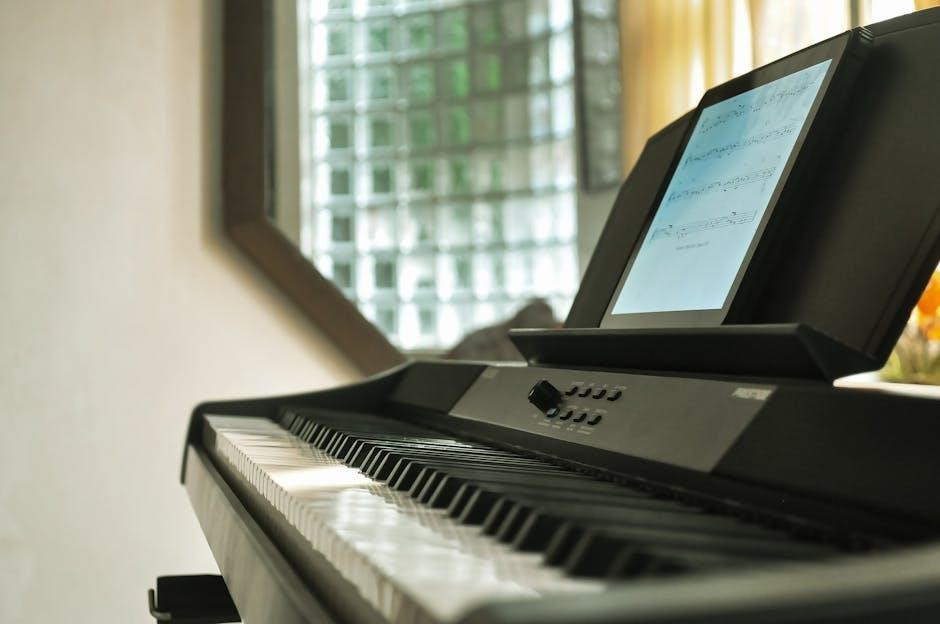
Yamaha P115: Frequently Asked Questions
This section addresses common user inquiries regarding the Yamaha P115, including setup, functionality, troubleshooting, and warranty details for a seamless experience.
Common Questions Answered
Q: Can I connect the P115 to my computer? A: Yes, using a USB cable allows MIDI connectivity for recording and using music software. Q: How do I change the voices? Utilize the ‘Voice’ selection button to cycle through the available instrument sounds. Q: Is the P115 weighted?
It features Graded Hammer Standard (GHS) action, simulating an acoustic piano’s feel. Q: What if there’s no sound? Check the volume, headphones, and power connections. Q: How do I update the firmware? Download updates from Yamaha’s official support website and follow the provided instructions carefully. Q: Where can I find replacement parts?
Explore Yamaha’s website or authorized dealers for genuine parts. Q: What is the warranty period? Refer to the warranty information included with your purchase for specific details and coverage terms. Remember to register your product for extended benefits.
Warranty Information
Yamaha provides a limited warranty for the P115 digital piano, typically covering manufacturing defects in materials and workmanship. The standard warranty period is one year from the date of original purchase. This warranty doesn’t cover damage resulting from misuse, accidents, unauthorized modifications, or normal wear and tear.
To claim warranty service, retain your proof of purchase and contact Yamaha customer support or an authorized service center. Registration of your P115 extends benefits. Carefully review the complete warranty details included with your instrument for specific terms, conditions, and exclusions.
Extended warranties may be available for purchase, offering additional coverage beyond the standard period. Always adhere to Yamaha’s guidelines for maintaining warranty validity.